



- この記事で扱う内容
- 前提
- Claude Codeとは
- Claude Code CLIとは
- Claude Code CLIのダウンロードとインストール方法
- Claude Code CLIのパスをWindows環境変数に追加する
- (任意)ターミナル(PowerShell)で「claude」コマンドを試し打ちする
- Claude Code CLIを利用しない場合(無料プラン可)
- Claude Code CLIを利用する場合(無料プラン不可)
- 任意の作業フォルダへ移動する
- claudeコマンドを試し打ちする
- 「claude」コマンドを実行する
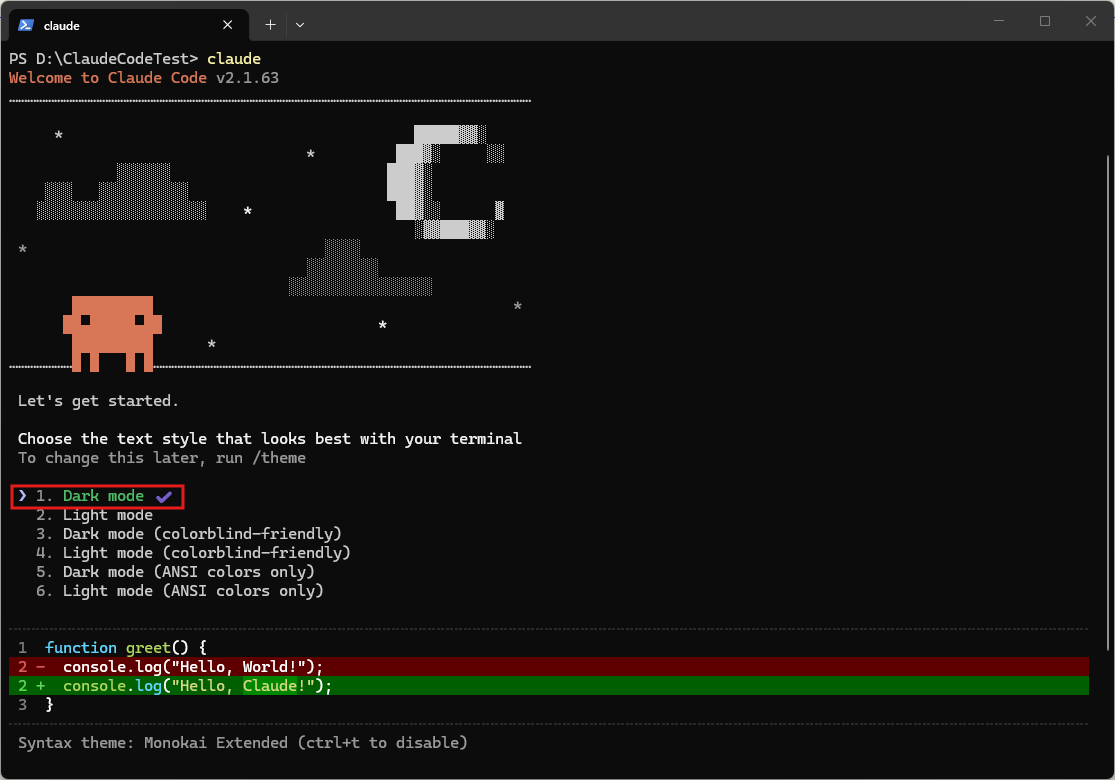
- テキストスタイルの確認メッセージが表示されるため、任意のスタイルを選択し、「Enter」キーを押す
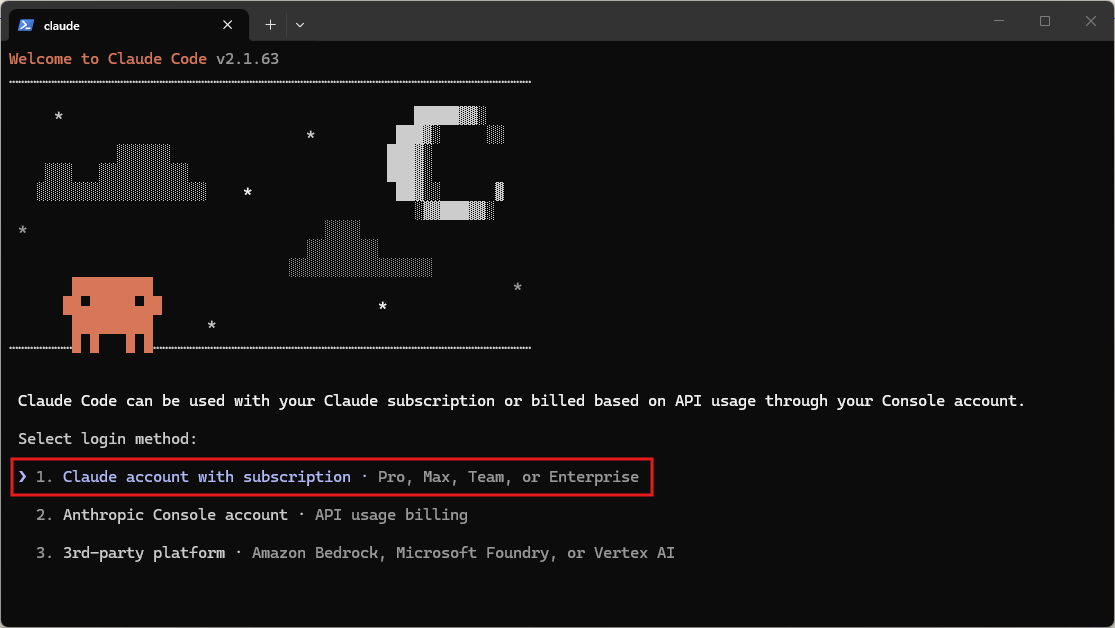
- ログイン方法を確認するメッセージが表示されるため、任意の方法を選択し、「Enter」キーを押す
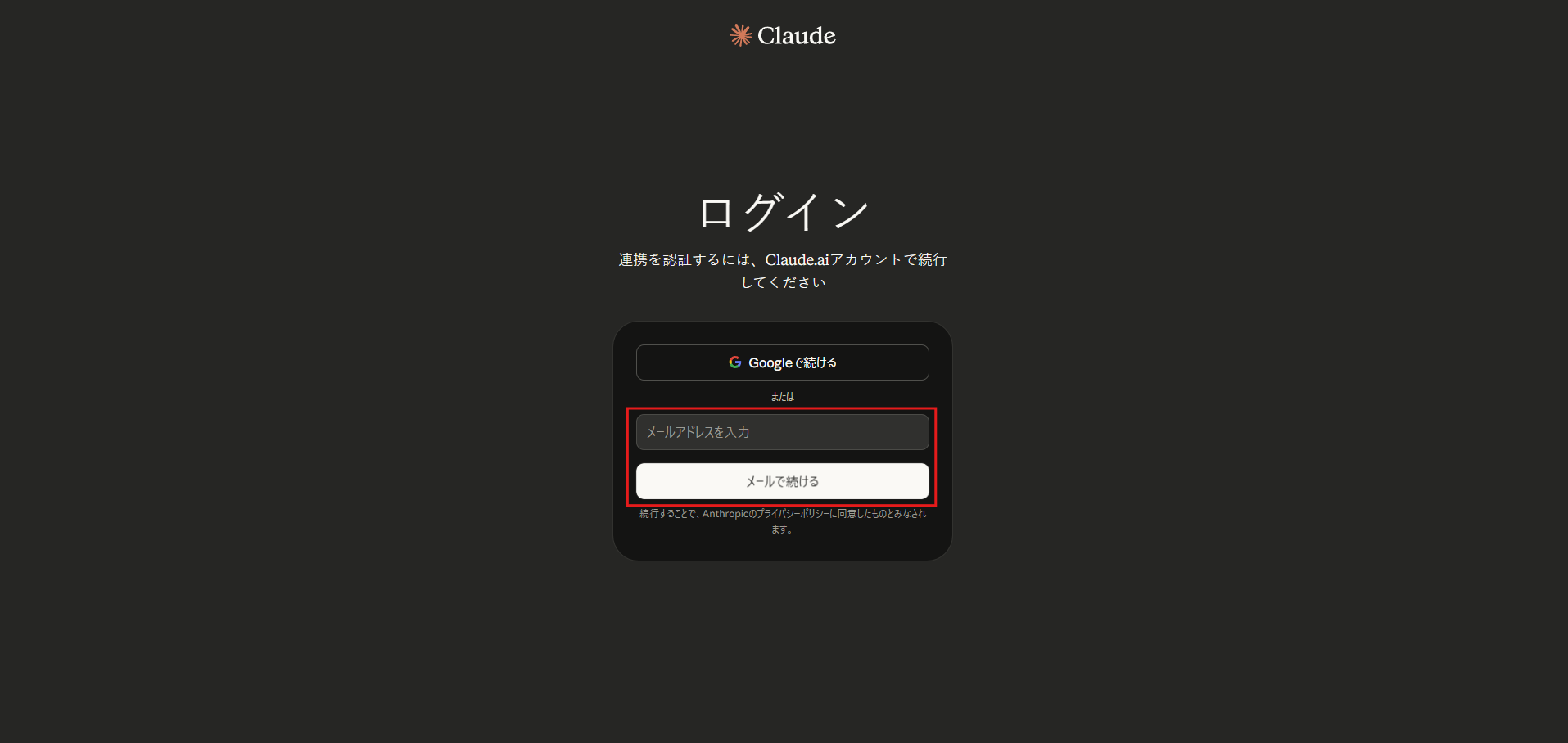
- ブラウザが自動で起動しログイン画面が表示されるため、Claudeアカウントでログインする
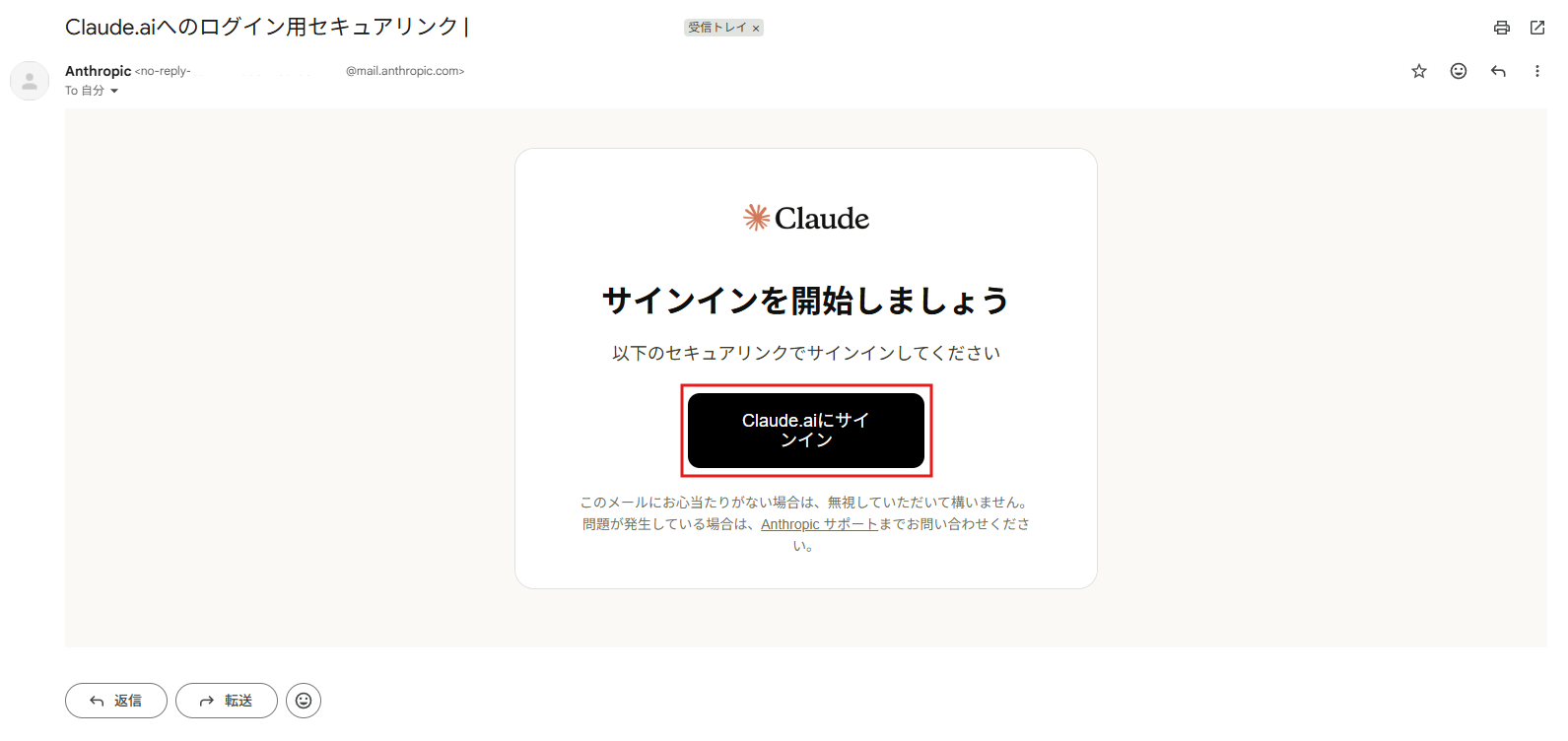
- 登録してあるメールアドレスにメールが送られてくるため、「Claude.aiにサインイン」ボタンを押す
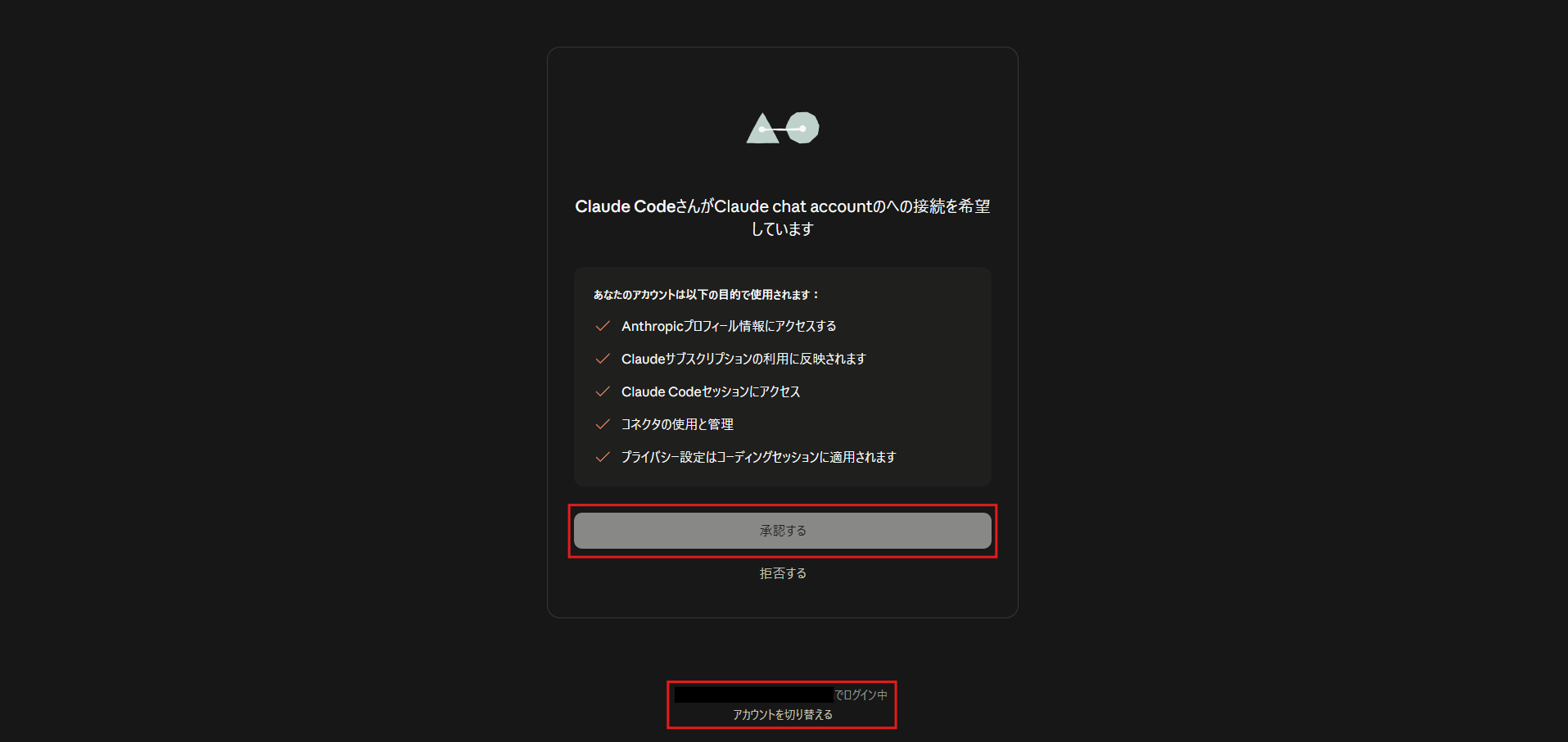
- Claude Codeに対するClaudeアカウント接続承認画面が表示されるため、対象のアカウントを確認し、「承認する」ボタンを押す
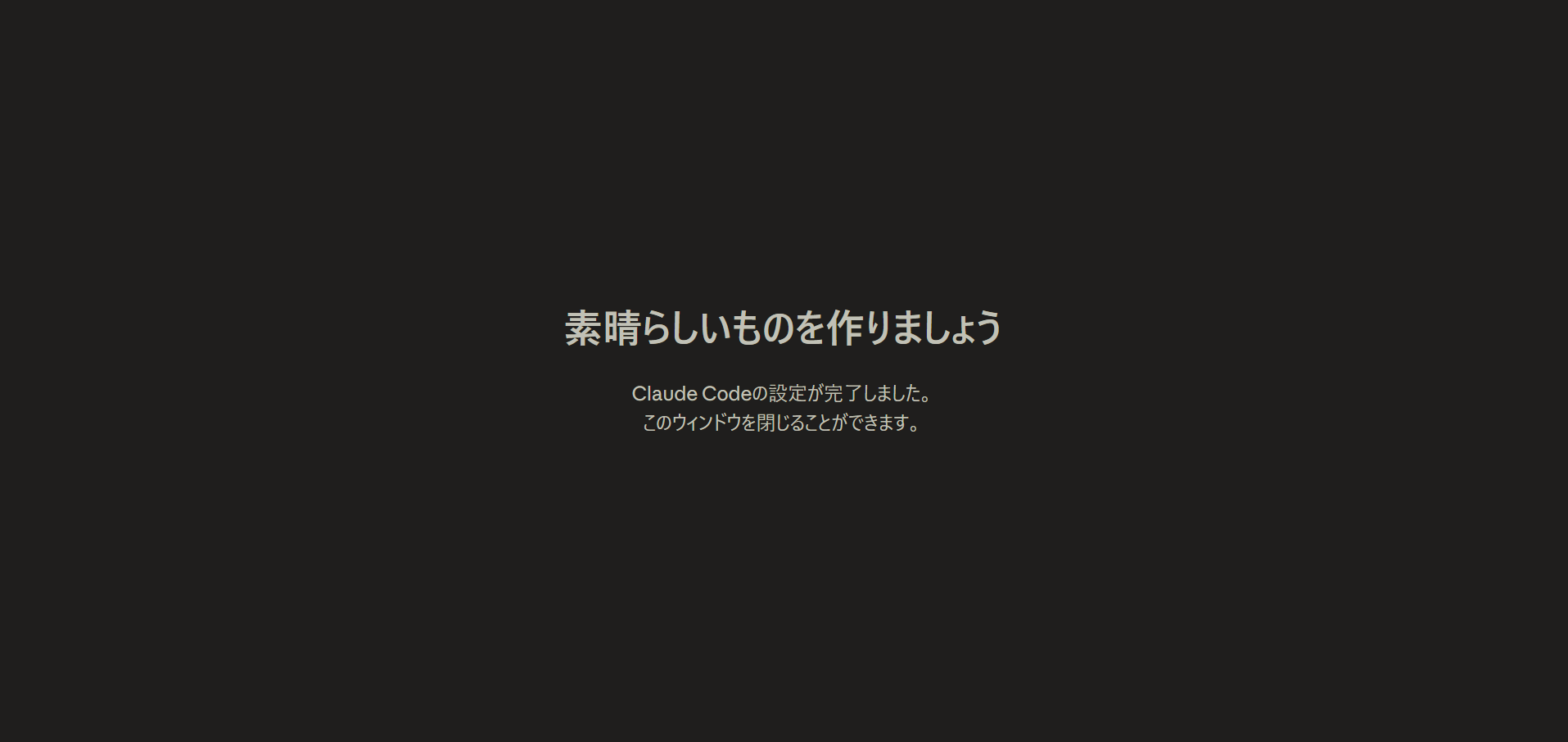
- 承認完了画面が表示されるため、このウィンドウを閉じる
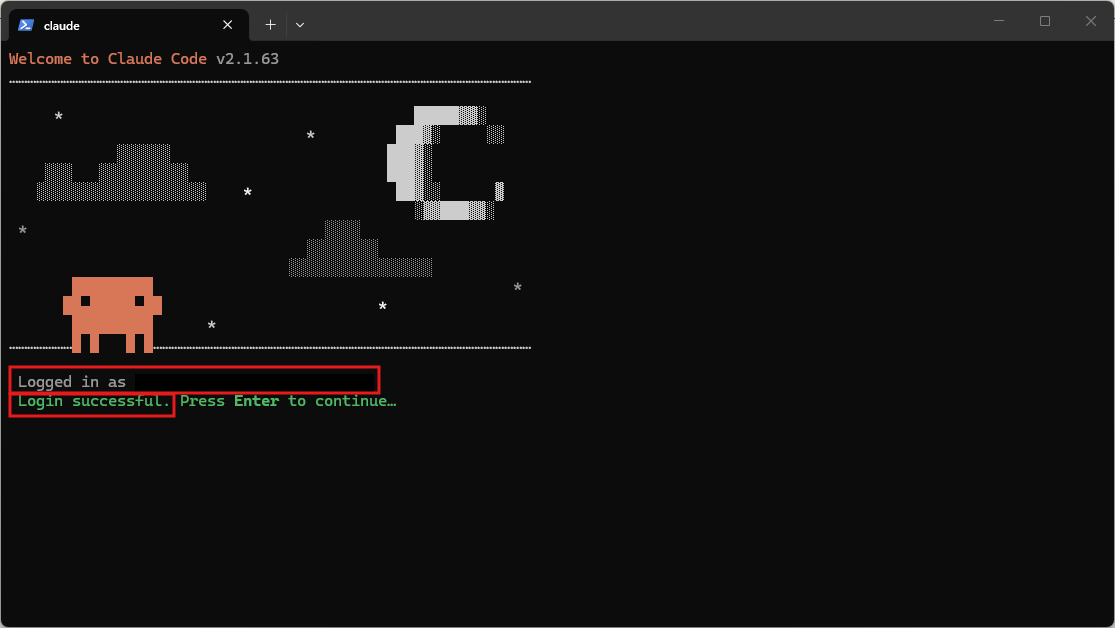
- Claude Code CLIの画面に接続したClaudeアカウントとログイン成功のメッセージが表示されるため、「Enter」キーを押す
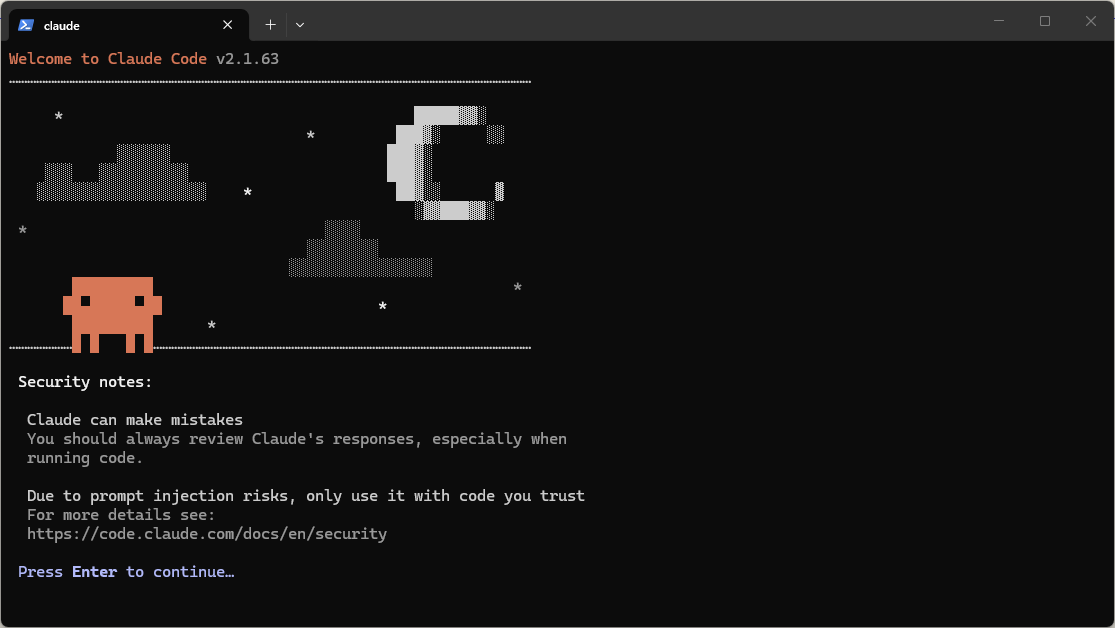
- セキュリティに関する注意事項が表示されるため、内容を確認後、「Enter」キーを押す
- 作業フォルダの信頼性を確認するメッセージが表示されるため、「1. Yes, I trust this folder(はい、このフォルダを信頼します)」を選択し、「Enter」キーを押す
- Claude Code CLIが利用可能になる
- Claude Code CLIに指示(プロンプト)を試し打ちする
- おすすめの関連記事
- 参考
この記事で扱う内容
この記事では、Claude Code CLIのダウンロードとインストール方法についてご紹介します。
前提
前提知識・前提スキル
- Windows OS の基本操作ができる人
前提環境
- 使用PC
- OS が Windows 11であること
- Gitがインストールされていること(最新版が推奨されている)
- Claude Code CLIをインストールしても良いこと
- その他
- Claudeアカウントを作成済みであること
- ClaudeアカウントのサブスクリプションプランがClaude Codeを利用可能であること
(Claude Code CLIを利用する場合)
Claude Codeとは
Claude Codeは、Anthropic社が提供する「AIコーディング支援サービス(コーディングエージェント)」です。
AI「Claude」を使って開発作業を支援してくれます。
コードベースを読み取り、複数ファイルの編集やコマンド実行まで行い、バグ修正や機能追加をサポートします。
Claude Code CLIとは
Claude Code CLIは、AIサービス「Claude」をコマンドライン(黒い画面)から使うための開発者向けツールです。
コードの生成や修正、タスクの自動化などを、ターミナル上で効率よく行えます。
Claude Code CLIのダウンロードとインストール方法

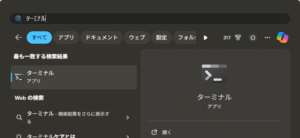
スタートメニューで「ターミナル」を検索後、「ターミナル」を選択し起動する
ターミナル(PowerShell)が表示されるため、以下のコマンドで「Claude Code CLI」をダウンロード・インストールする
コマンド例
irm https://claude.ai/install.ps1 | iex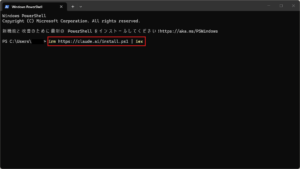
実行結果例
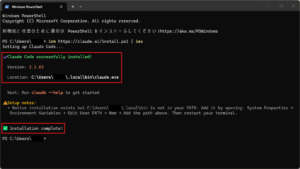
Claude Code CLIのパスをWindows環境変数に追加する
今回は、Claude Code CLIインストール時に表示されたメッセージに従い、Claude Codeのパスをユーザー環境変数「Path」に追加します。
| 環境変数種別 | 環境変数名 | 環境変数値 |
|---|---|---|
| ユーザー環境変数 | Path | C:\Users\ユーザー名\.local\bin\ |
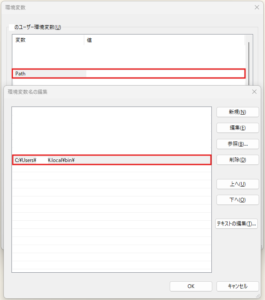
詳細な操作方法が知りたい方は、以下のブログ記事を参考にしてください。
(任意)ターミナル(PowerShell)で「claude」コマンドを試し打ちする
Claude Code CLIを利用しない場合(無料プラン可)
コマンド例
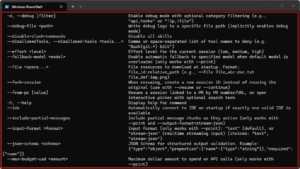
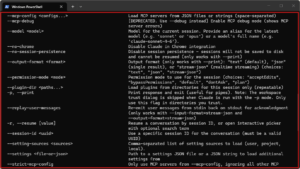
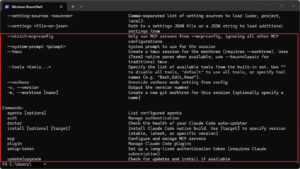
claude --help to get started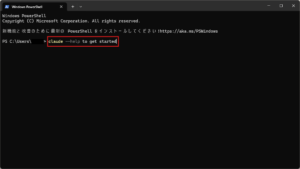
実行結果例
Usage: claude [options] [command] [prompt]

Claude Code - starts an interactive session by default, use -p/--print for non-interactive output

Arguments:
  prompt                                            Your prompt

Options:
  --add-dir <directories...>                        Additional directories to allow tool access to
  --agent <agent>                                   Agent for the current session. Overrides the 'agent' setting.
  --agents <json>                                   JSON object defining custom agents (e.g. '{"reviewer":
                                                    {"description": "Reviews code", "prompt": "You are a code
                                                    reviewer"}}')
  --allow-dangerously-skip-permissions              Enable bypassing all permission checks as an option, without it
                                                    being enabled by default. Recommended only for sandboxes with no
                                                    internet access.
  --allowedTools, --allowed-tools <tools...>        Comma or space-separated list of tool names to allow (e.g.
                                                    "Bash(git:*) Edit")
  --append-system-prompt <prompt>                   Append a system prompt to the default system prompt
  --betas <betas...>                                Beta headers to include in API requests (API key users only)
  --chrome                                          Enable Claude in Chrome integration
  -c, --continue                                    Continue the most recent conversation in the current directory
  --dangerously-skip-permissions                    Bypass all permission checks. Recommended only for sandboxes with
                                                    no internet access.
  -d, --debug [filter]                              Enable debug mode with optional category filtering (e.g.,
                                                    "api,hooks" or "!1p,!file")
  --debug-file <path>                               Write debug logs to a specific file path (implicitly enables debug
                                                    mode)
  --disable-slash-commands                          Disable all skills
  --disallowedTools, --disallowed-tools <tools...>  Comma or space-separated list of tool names to deny (e.g.
                                                    "Bash(git:*) Edit")
  --effort <level>                                  Effort level for the current session (low, medium, high)
  --fallback-model <model>                          Enable automatic fallback to specified model when default model is
                                                    overloaded (only works with --print)
  --file <specs...>                                 File resources to download at startup. Format:
                                                    file_id:relative_path (e.g., --file file_abc:doc.txt
                                                    file_def:img.png)
  --fork-session                                    When resuming, create a new session ID instead of reusing the
                                                    original (use with --resume or --continue)
  --from-pr [value]                                 Resume a session linked to a PR by PR number/URL, or open
                                                    interactive picker with optional search term
  -h, --help                                        Display help for command
  --ide                                             Automatically connect to IDE on startup if exactly one valid IDE is
                                                    available
  --include-partial-messages                        Include partial message chunks as they arrive (only works with
                                                    --print and --output-format=stream-json)
  --input-format <format>                           Input format (only works with --print): "text" (default), or
                                                    "stream-json" (realtime streaming input) (choices: "text",
                                                    "stream-json")
  --json-schema <schema>                            JSON Schema for structured output validation. Example:
                                                    {"type":"object","properties":{"name":{"type":"string"}},"required":["name"]}
  --max-budget-usd <amount>                         Maximum dollar amount to spend on API calls (only works with
                                                    --print)
  --mcp-config <configs...>                         Load MCP servers from JSON files or strings (space-separated)
  --mcp-debug                                       [DEPRECATED. Use --debug instead] Enable MCP debug mode (shows MCP
                                                    server errors)
  --model <model>                                   Model for the current session. Provide an alias for the latest
                                                    model (e.g. 'sonnet' or 'opus') or a model's full name (e.g.
                                                    'claude-sonnet-4-6').
  --no-chrome                                       Disable Claude in Chrome integration
  --no-session-persistence                          Disable session persistence - sessions will not be saved to disk
                                                    and cannot be resumed (only works with --print)
  --output-format <format>                          Output format (only works with --print): "text" (default), "json"
                                                    (single result), or "stream-json" (realtime streaming) (choices:
                                                    "text", "json", "stream-json")
  --permission-mode <mode>                          Permission mode to use for the session (choices: "acceptEdits",
                                                    "bypassPermissions", "default", "dontAsk", "plan")
  --plugin-dir <paths...>                           Load plugins from directories for this session only (repeatable)
  -p, --print                                       Print response and exit (useful for pipes). Note: The workspace
                                                    trust dialog is skipped when Claude is run with the -p mode. Only
                                                    use this flag in directories you trust.
  --replay-user-messages                            Re-emit user messages from stdin back on stdout for acknowledgment
                                                    (only works with --input-format=stream-json and
                                                    --output-format=stream-json)
  -r, --resume [value]                              Resume a conversation by session ID, or open interactive picker
                                                    with optional search term
  --session-id <uuid>                               Use a specific session ID for the conversation (must be a valid
                                                    UUID)
  --setting-sources <sources>                       Comma-separated list of setting sources to load (user, project,
                                                    local).
  --settings <file-or-json>                         Path to a settings JSON file or a JSON string to load additional
                                                    settings from
  --strict-mcp-config                               Only use MCP servers from --mcp-config, ignoring all other MCP
                                                    configurations
  --system-prompt <prompt>                          System prompt to use for the session
  --tmux                                            Create a tmux session for the worktree (requires --worktree). Uses
                                                    iTerm2 native panes when available; use --tmux=classic for
                                                    traditional tmux.
  --tools <tools...>                                Specify the list of available tools from the built-in set. Use ""
                                                    to disable all tools, "default" to use all tools, or specify tool
                                                    names (e.g. "Bash,Edit,Read").
  --verbose                                         Override verbose mode setting from config
  -v, --version                                     Output the version number
  -w, --worktree [name]                             Create a new git worktree for this session (optionally specify a
                                                    name)

Commands:
  agents [options]                                  List configured agents
  auth                                              Manage authentication
  doctor                                            Check the health of your Claude Code auto-updater
  install [options] [target]                        Install Claude Code native build. Use [target] to specify version
                                                    (stable, latest, or specific version)
  mcp                                               Configure and manage MCP servers
  plugin                                            Manage Claude Code plugins
  setup-token                                       Set up a long-lived authentication token (requires Claude
                                                    subscription)
  update|upgrade                                    Check for updates and install if available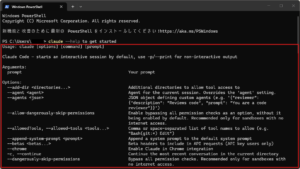
Claude Code CLIを利用する場合(無料プラン不可)
任意の作業フォルダへ移動する
コマンド例
cd D:\ClaudeCodeTest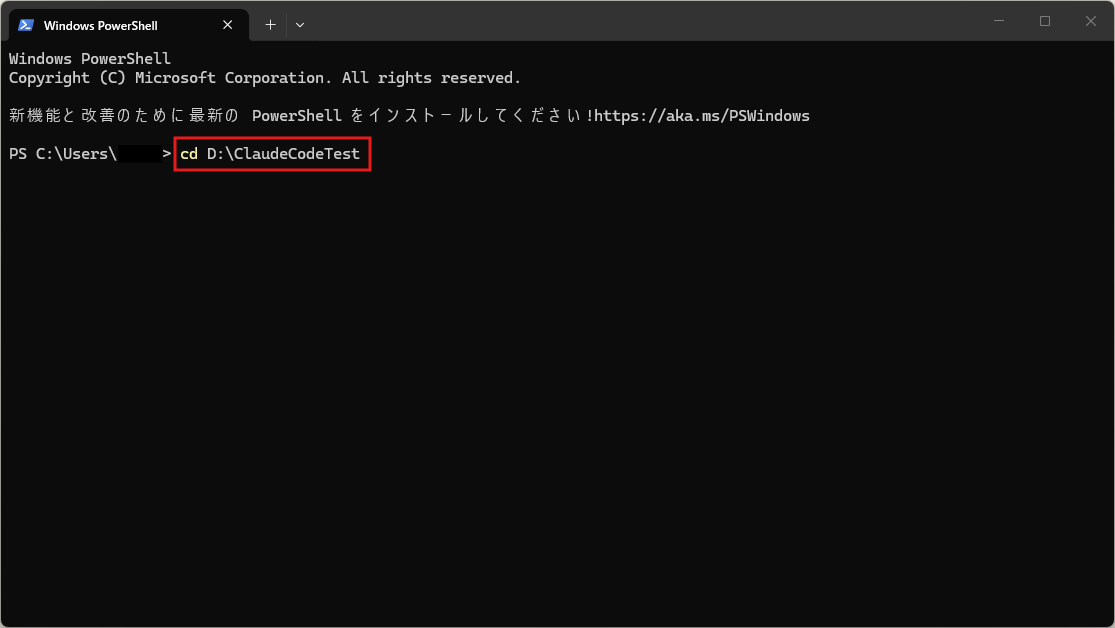
実行結果例
PS D:\ClaudeCodeTest>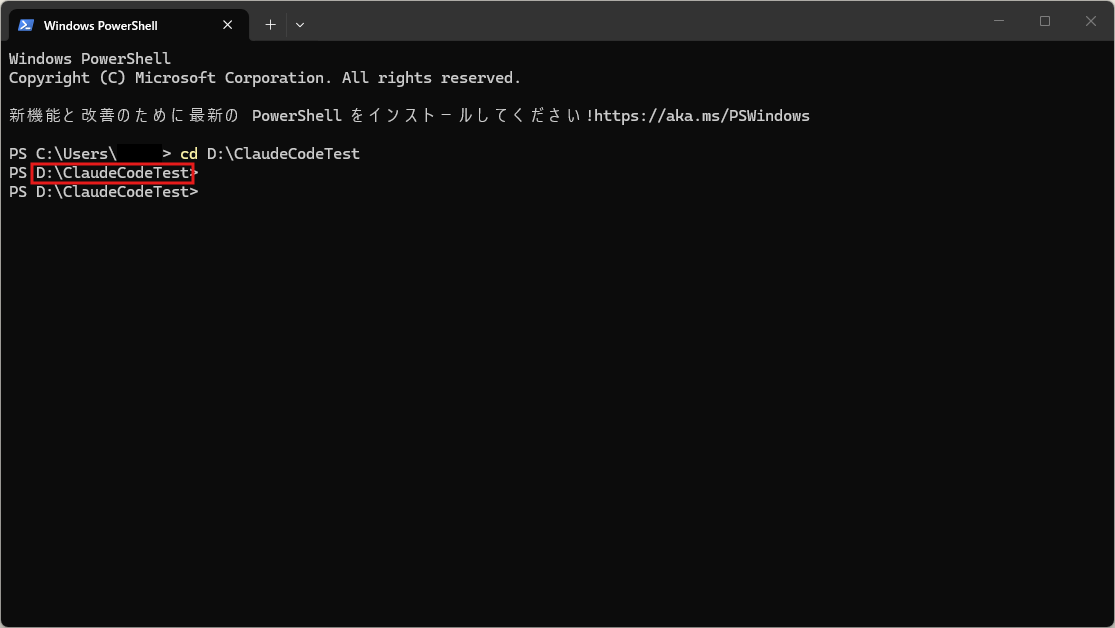
claudeコマンドを試し打ちする
「claude」コマンドを実行する
コマンド例
claude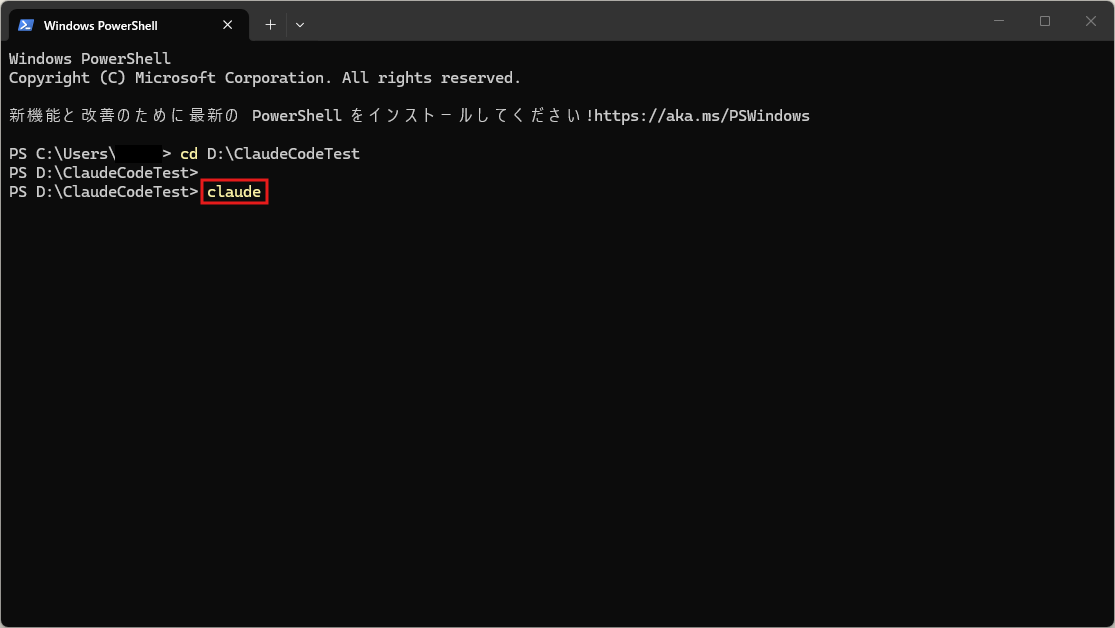
実行結果例
Welcome to Claude Code v2.1.63
…………………………………………………………………………………………………………………………………………………………

     *                                       █████▓▓░
                                 *         ███▓░     ░░
            ░░░░░░                        ███▓░
    ░░░   ░░░░░░░░░░                      ███▓░
   ░░░░░░░░░░░░░░░░░░░    *                ██▓░░      ▓
                                             ░▓▓███▓▓░
 *                                 ░░░░
                                 ░░░░░░░░
                               ░░░░░░░░░░░░░░░░
       █████████                                        *
      ██▄█████▄██                        *
       █████████      *
…………………█ █   █ █………………………………………………………………………………………………………………

 Let's get started.

 Choose the text style that looks best with your terminal
 To change this later, run /theme

 ❯ 1. Dark mode ✔
   2. Light mode
   3. Dark mode (colorblind-friendly)
   4. Light mode (colorblind-friendly)
   5. Dark mode (ANSI colors only)
   6. Light mode (ANSI colors only)

╌╌╌╌╌╌╌╌╌╌╌╌╌╌╌╌╌╌╌╌╌╌╌╌╌╌╌╌╌╌╌╌╌╌╌╌╌╌╌╌╌╌╌╌╌╌╌╌╌╌╌╌╌╌╌╌╌╌╌╌╌╌╌╌╌╌╌╌╌╌╌╌╌╌╌╌╌╌╌╌╌╌╌╌╌╌╌╌╌╌╌╌╌╌╌╌╌╌╌╌╌╌╌╌╌╌╌╌╌╌╌╌╌╌╌╌╌╌╌╌
 1  function greet() {
 2 -  console.log("Hello, World!");
 2 +  console.log("Hello, Claude!");
 3  }
╌╌╌╌╌╌╌╌╌╌╌╌╌╌╌╌╌╌╌╌╌╌╌╌╌╌╌╌╌╌╌╌╌╌╌╌╌╌╌╌╌╌╌╌╌╌╌╌╌╌╌╌╌╌╌╌╌╌╌╌╌╌╌╌╌╌╌╌╌╌╌╌╌╌╌╌╌╌╌╌╌╌╌╌╌╌╌╌╌╌╌╌╌╌╌╌╌╌╌╌╌╌╌╌╌╌╌╌╌╌╌╌╌╌╌╌╌╌╌╌
 Syntax theme: Monokai Extended (ctrl+t to disable)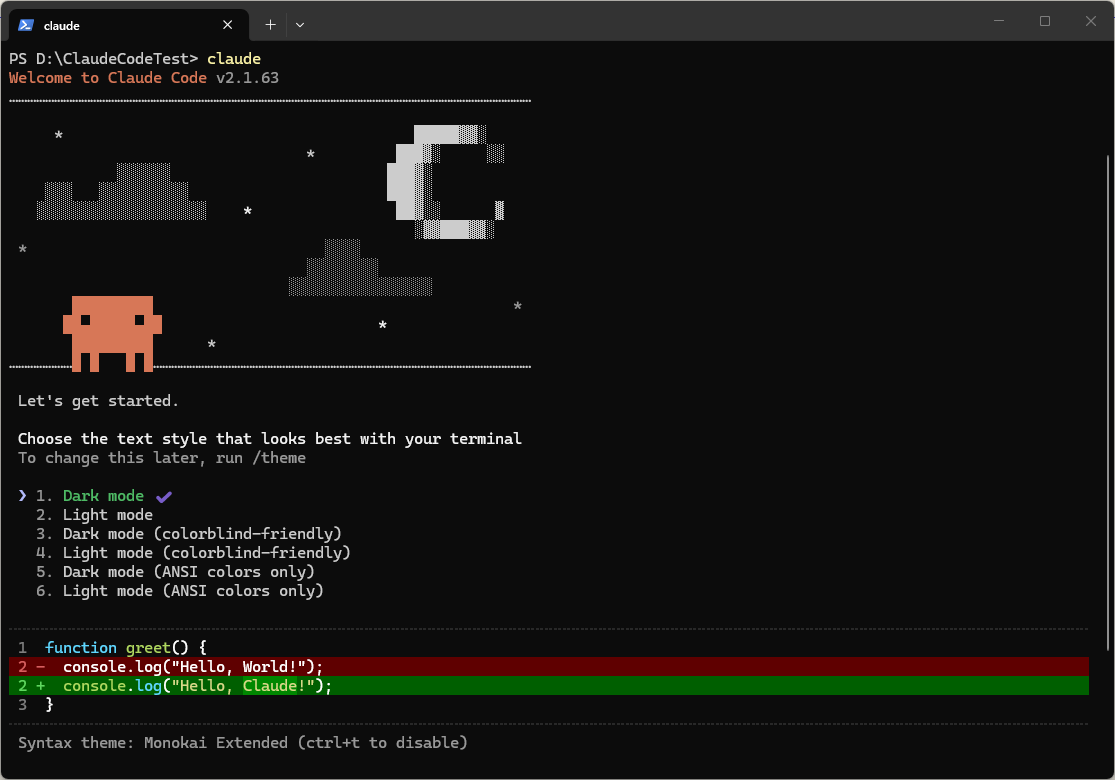
テキストスタイルの確認メッセージが表示されるため、任意のスタイルを選択し、「Enter」キーを押す
ログイン方法を確認するメッセージが表示されるため、任意の方法を選択し、「Enter」キーを押す
※今回は、「1. Claude account with subscription · Pro, Max, Team, or Enterprise」を選択します。
ブラウザが自動で起動しログイン画面が表示されるため、Claudeアカウントでログインする
※今回は、メールアドレスでログインします。
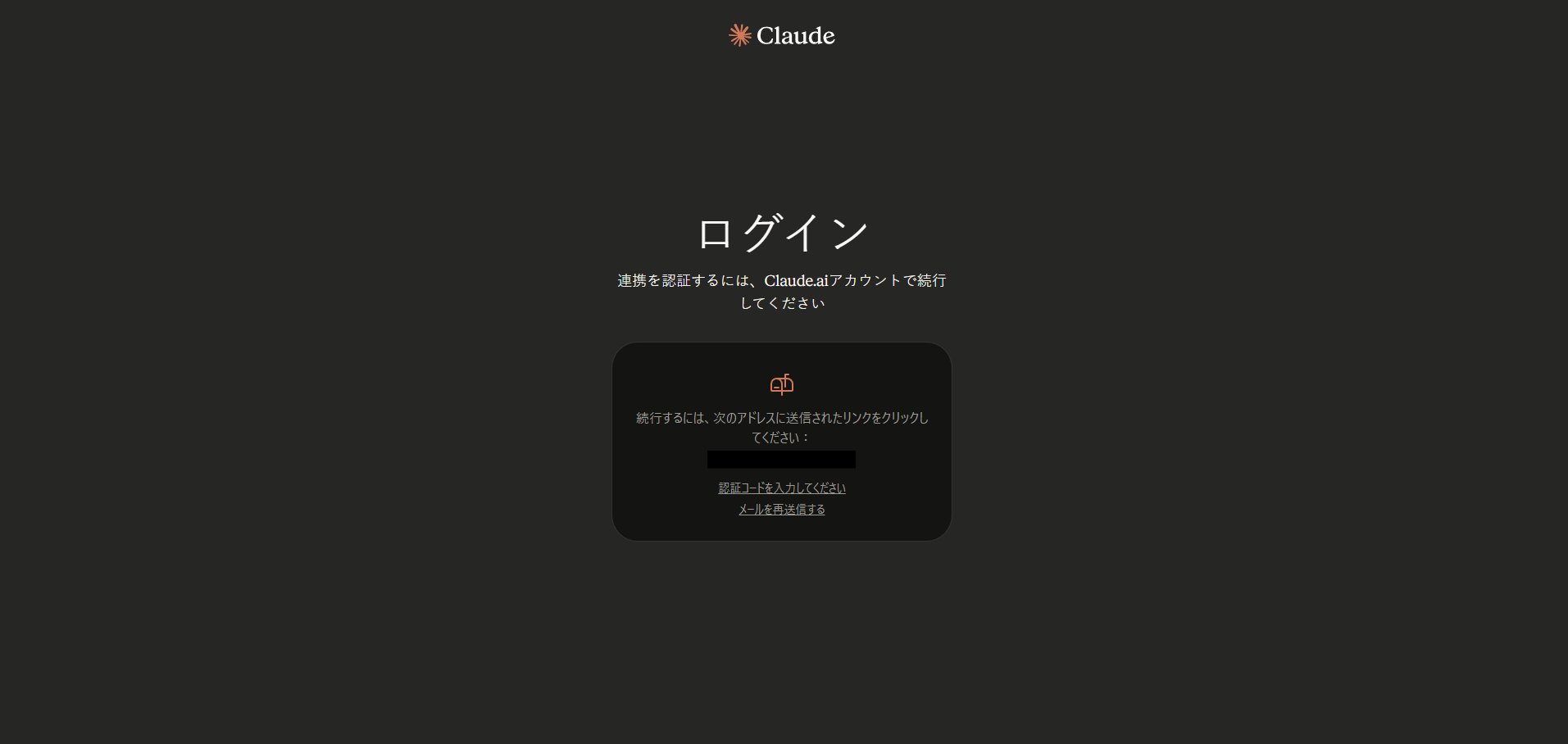
登録してあるメールアドレスにメールが送られてくるため、「Claude.aiにサインイン」ボタンを押す
Claude Codeに対するClaudeアカウント接続承認画面が表示されるため、対象のアカウントを確認し、「承認する」ボタンを押す
承認完了画面が表示されるため、このウィンドウを閉じる
Claude Code CLIの画面に接続したClaudeアカウントとログイン成功のメッセージが表示されるため、「Enter」キーを押す
セキュリティに関する注意事項が表示されるため、内容を確認後、「Enter」キーを押す
作業フォルダの信頼性を確認するメッセージが表示されるため、「1. Yes, I trust this folder(はい、このフォルダを信頼します)」を選択し、「Enter」キーを押す
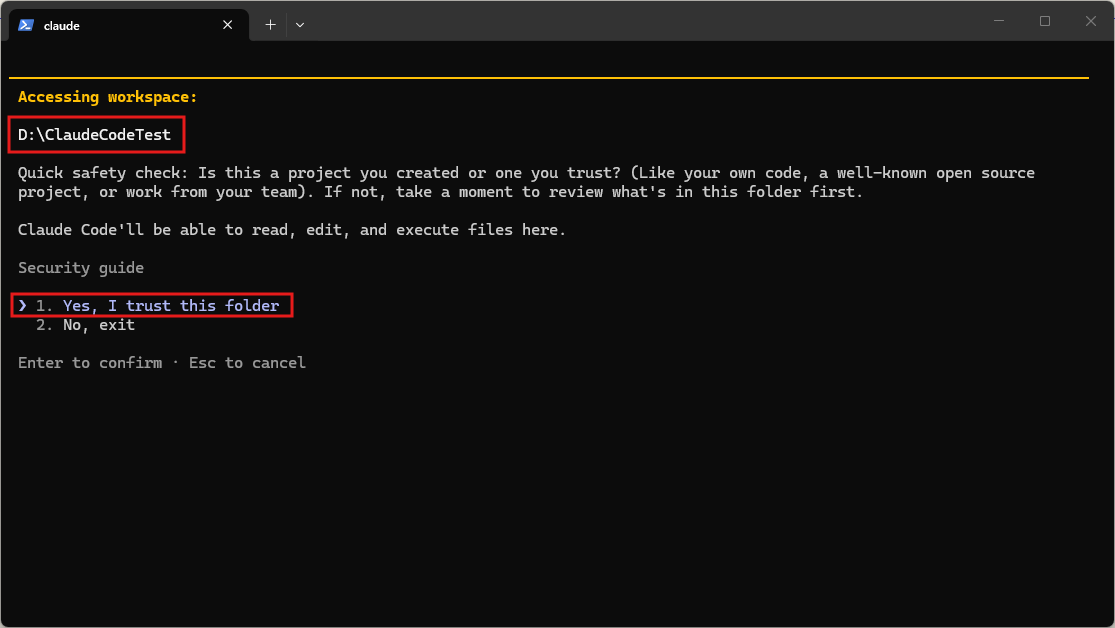
Claude Code CLIが利用可能になる
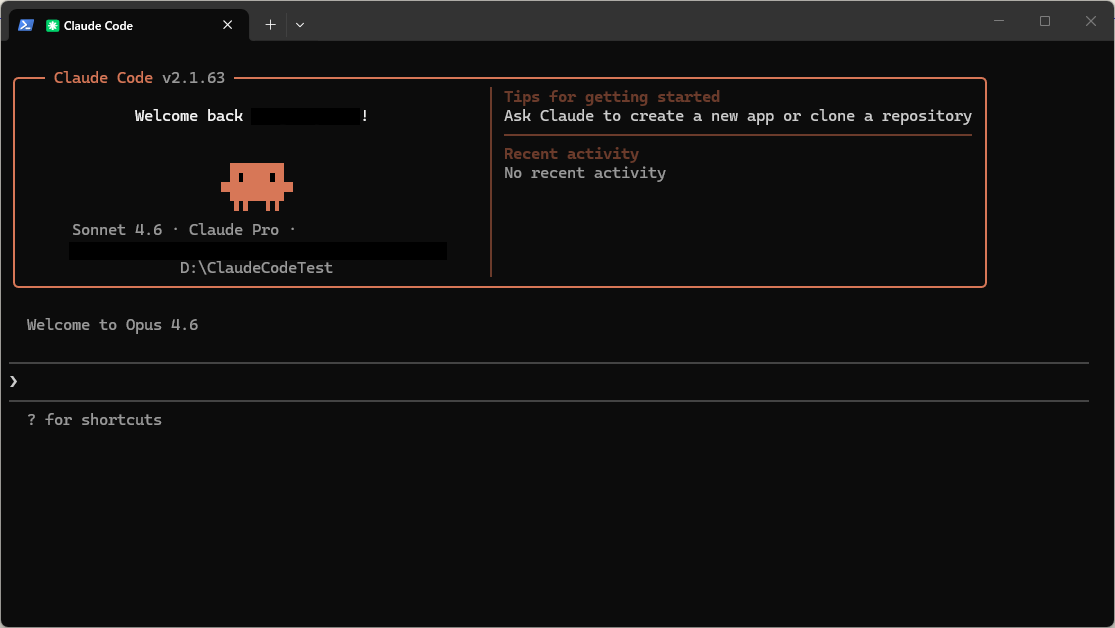
Claude Code CLIに指示(プロンプト)を試し打ちする
Claude Code CLIに任意の指示(プロンプト)を入力後、「Enter」キーを押す
※今回は、テストファイルを作成します。
コマンド例
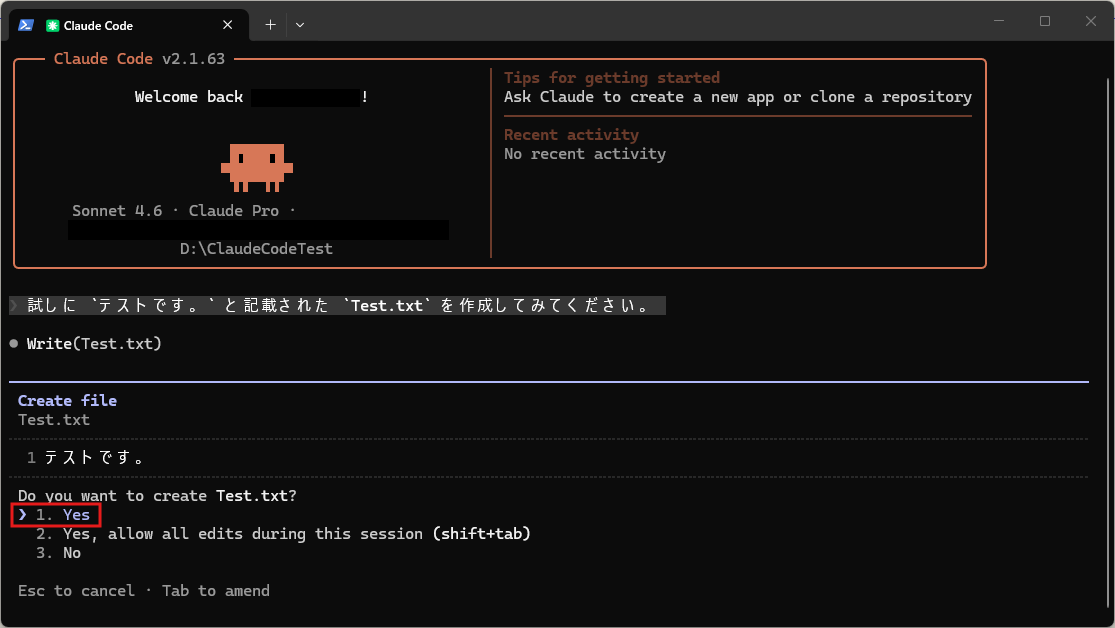
試しに `テストです。` と記載された `Test.txt` を作成してみてください。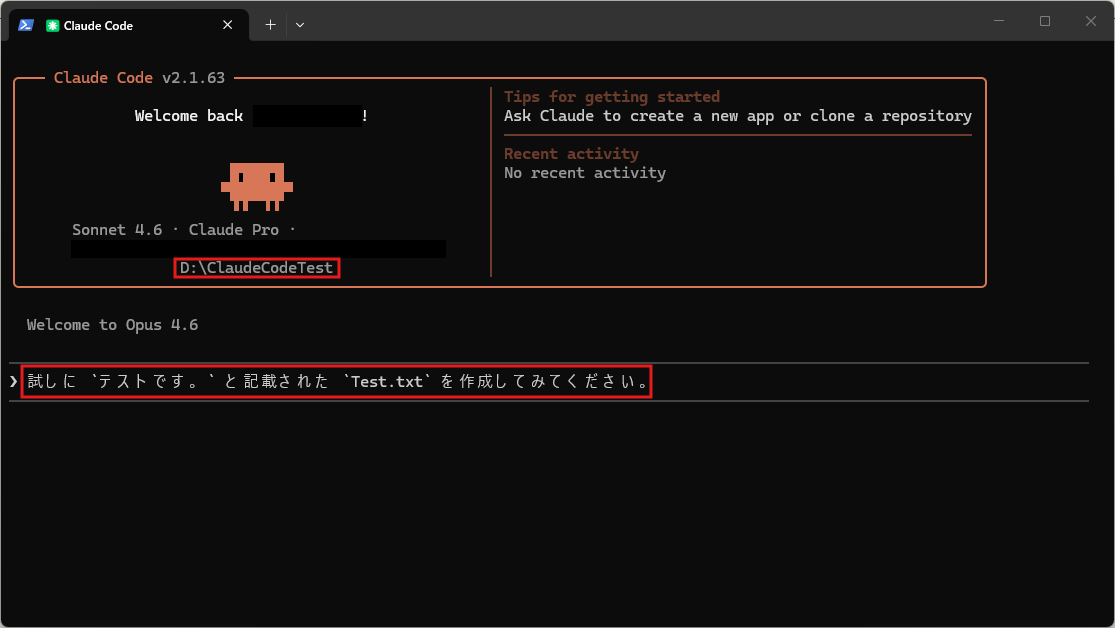
実行結果例
● Write(Test.txt)

────────────────────────────────────────────────────────────────────────────────────────────────────────────────────────
 Create file
 Test.txt
╌╌╌╌╌╌╌╌╌╌╌╌╌╌╌╌╌╌╌╌╌╌╌╌╌╌╌╌╌╌╌╌╌╌╌╌╌╌╌╌╌╌╌╌╌╌╌╌╌╌╌╌╌╌╌╌╌╌╌╌╌╌╌╌╌╌╌╌╌╌╌╌╌╌╌╌╌╌╌╌╌╌╌╌╌╌╌╌╌╌╌╌╌╌╌╌╌╌╌╌╌╌╌╌╌╌╌╌╌╌╌╌╌╌╌╌╌╌╌╌
  1 テストです。
╌╌╌╌╌╌╌╌╌╌╌╌╌╌╌╌╌╌╌╌╌╌╌╌╌╌╌╌╌╌╌╌╌╌╌╌╌╌╌╌╌╌╌╌╌╌╌╌╌╌╌╌╌╌╌╌╌╌╌╌╌╌╌╌╌╌╌╌╌╌╌╌╌╌╌╌╌╌╌╌╌╌╌╌╌╌╌╌╌╌╌╌╌╌╌╌╌╌╌╌╌╌╌╌╌╌╌╌╌╌╌╌╌╌╌╌╌╌╌╌
 Do you want to create Test.txt?
 ❯ 1. Yes
   2. Yes, allow all edits during this session (shift+tab)
   3. No

 Esc to cancel · Tab to amend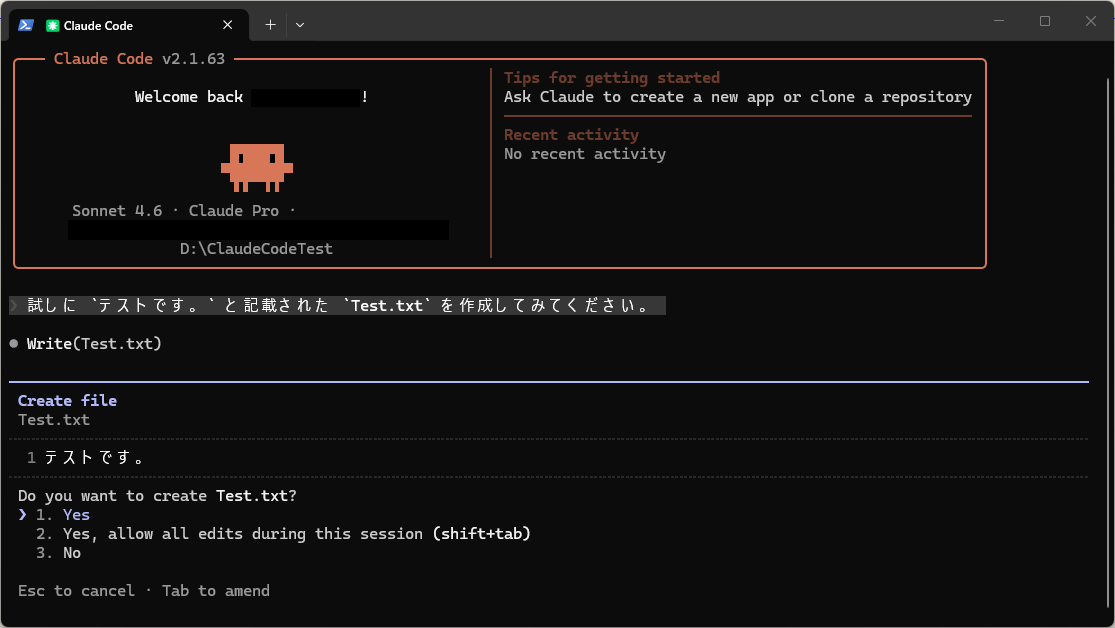
ファイル操作の許可レベルを確認するメッセージが表示されるため、「1. Yes(はい)」を選択後し、「Enter」キーを押す
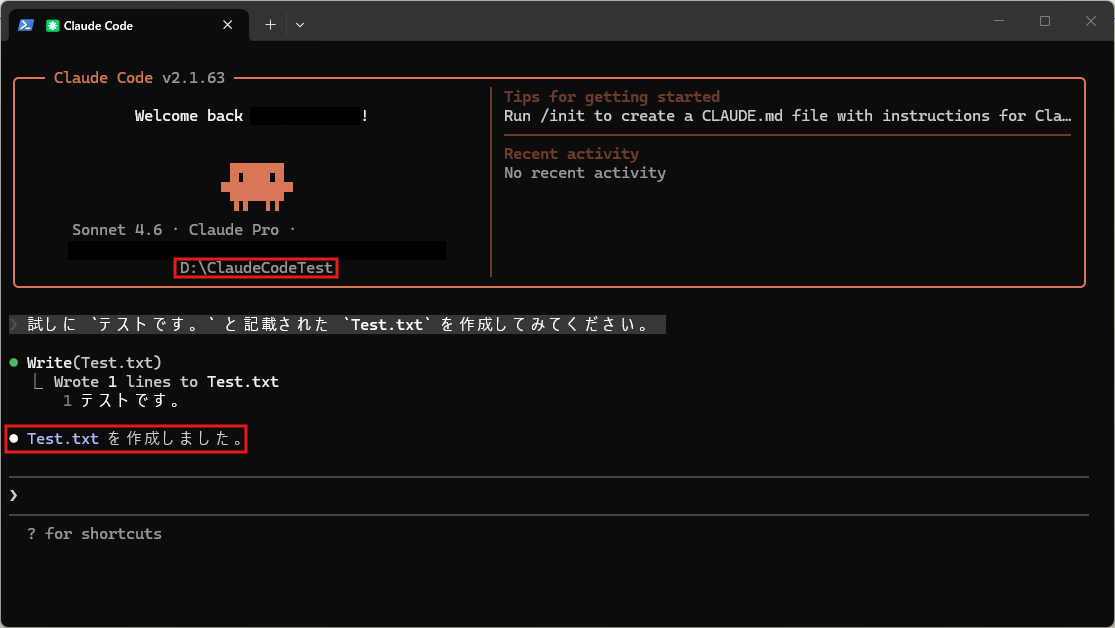
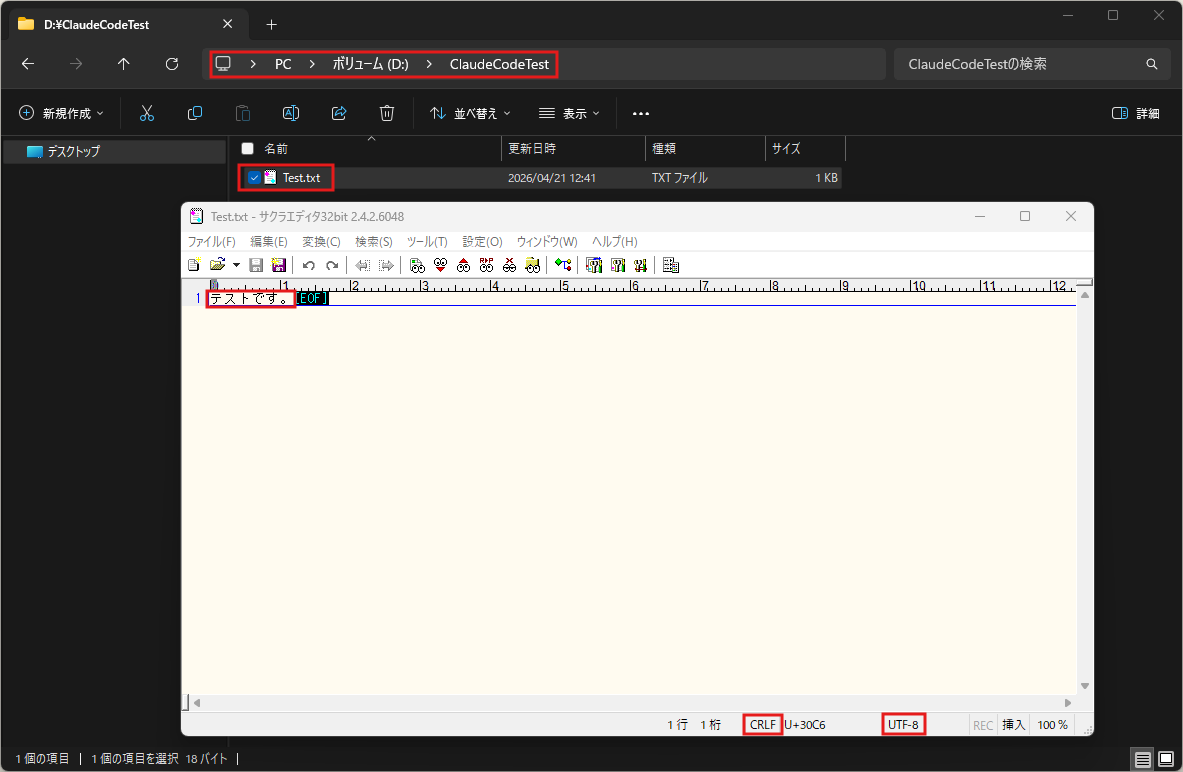
指示(プロンプト)に対する完了メッセージが表示されるため、結果を確認する
おすすめの関連記事

Gitのダウンロードとインストール方法【Windows】【初心者向け】
この記事で扱う内容この記事では、Gitを公式サイトからダウンロードし、Windowsにインストールする方法についてご紹介します。前提前提知識・前提スキルWindows OS の基本操作ができる人前提環境使用PCOS が Windows 10...

sepapalab.com
2026-04-12
Windows 11の環境変数を画面操作で設定する方法【初心者向け】
この記事で扱う内容この記事では、Windows 11の環境変数を画面操作で設定する方法についてご紹介します。前提前提知識・前提スキルWindows OS の基本操作ができる人前提環境使用PCOS が Windows 11であること環境変数と...
sepapalab.com
2026-01-13

Claudeアカウント作成方法【初心者向け】【無料】
この記事で扱う内容この記事では、Claudeアカウントを作成する方法についてご紹介します。前提前提知識・前提スキルブラウザの基本操作ができる人前提環境PCその他18歳以上であること年齢制限については、Anthropicヘルプセンターに以下の...
sepapalab.com
2026-04-27

Windows版Claudeアプリ(Claude for Windows)のダウンロード・インストール方法【初心者向け】
この記事で扱う内容この記事では、Windows版Claudeアプリ(Claude for Windows)のダウンロード・インストール方法についてご紹介します。前提前提知識・前提スキルWindows OS の基本操作ができる人前提環境使用P...
sepapalab.com
2026-04-12

PyCharmとClaude Code CLIをClaude Codeプラグインで連携する方法【Windows】【初心者向け】
この記事で扱う内容この記事では、PyCharmとClaude Code CLIをClaude Codeプラグインで連携する方法についてご紹介します。前提前提知識・前提スキルWindows OS の基本操作ができる人ブラウザの基本操作ができる...
sepapalab.com
2026-04-25